Visual tracing
Visual tracing provides a graphical, interactive HTML visualization of how the Axiomatics Policy DevOps (APD) engine evaluates an authorization decision. It illustrates the exact path the engine takes while processing policy sets, policies, rules, and conditions to reach an authorization decision, showing which elements were triggered.
This feature is especially valuable for debugging, understanding, and validating complex authorization policies. It allows you to see precisely which parts of a policy were evaluated and why a particular decision was made, helping you identify issues or unexpected behavior in your policies.
The HTML report is stored under the build/alfa/tests/trace directory.
Visual tracing is enabled by default. To disable it, set the withVisualTrace parameter to false within the alfa {...} configuration block of your build.gradle file. For example:
alfa {
    namespace "MyProject"
    mainpolicy "acme.Main"
    withVisualTrace false
...
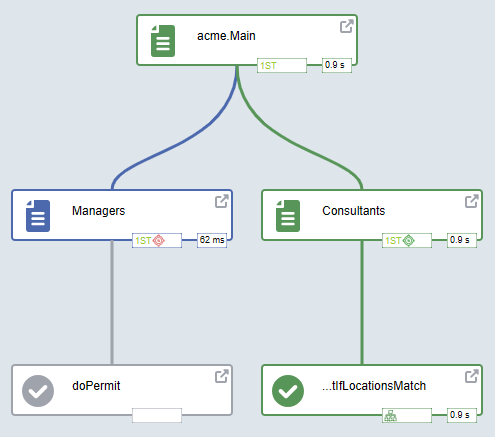
Interface
Visual tracing presents an interactive, graphical HTML visualization of the policy evaluation process. It uses a flowchart-like diagram to illustrate the hierarchy and execution path of the authorization decision.
Key elements of the visualization include:
- Nodes and flow: Nodes represent different policy components (policy sets, policies, rules, etc.) connected by lines that trace the evaluation flow.
- Evaluation path & timing: The lines show the exact path the APD engine took, often including labels to indicate the order and time taken for each step.
- Interactive detail panel: Hovering over any node opens an overlay panel providing element-specific details.
Side panel
The side panel provides essential controls for customizing the visualization and a color-coded legend for interpreting the diagram's flow.
| Control | Function | Shortcut |
|---|---|---|
| Show not evaluated nodes | Toggles the display of policy elements that were skipped during evaluation. | E |
| Developer mode | Enables advanced details on the visualization. | D |
| Horizontal layout | Changes the flowchart orientation from vertical to horizontal. | H |
| View | Allows you to change the focus of the visualization. The default view is Policy, but you can switch to views like Dictionary, Attribute connectors, or Request. | V |
Interpreting the trace
The visual trace is a flowchart of the policy evaluation. Each node represents a policy component that was considered during the authorization decision.
Decision states
Each node is color-coded to indicate its evaluation result. Check the legend in the side panel of the trace for the exact colors used in your version, as they may vary. The states you will see are:
| State | Meaning |
|---|---|
| Permit | The policy or rule evaluated to Permit |
| Deny | The policy or rule evaluated to Deny |
| NotApplicable | The policy or rule did not apply: its target conditions were not met by the attributes in the request |
| Indeterminate | An error occurred during evaluation of this component |
| NotEvaluated | The component was not reached. For example, because an earlier rule already determined the outcome (hidden by default; toggle with Show not evaluated nodes) |
Finding where a decision was made
To trace the reason for a specific decision:
- Start from the root node (your main policy) at the top of the diagram and follow the highlighted evaluation path downward.
- The deepest colored node on the path is the rule or policy that produced the final decision.
- Hover over any node to open the detail panel showing the component name, the attribute values it received, and its evaluation result.
Common patterns to investigate
- Unexpected NotApplicable on a rule: The rule's target conditions did not match the incoming request. Open the detail panel to compare what attribute values were in the request against what the rule expected.
- Wrong combining algorithm outcome: If you have multiple rules, check whether the combining algorithm (first-applicable, deny-overrides, etc.) is producing an unexpected result when several rules match simultaneously.
- Short-circuit evaluation: When a combining algorithm stops early after the first matching rule, later rules are not evaluated at all and appear as NotEvaluated. This is normal behavior, not an error.