Quick start using VS Code
You can load and work with the sample ALFA project in the same way as other Gradle-based Java projects. This section describes how to do that in Visual Studio Code (VS Code). You can also use any other Integrated Development Environment (IDE) that supports Gradle and Java.
Install VS Code and add the following plugins:
- Gradle for JavaOpens in a new tab
- Extension Pack for JavaOpens in a new tab
- Visual Studio Code extension for ALFAOpens in a new tab
Click File > Open Folder and select the folder that contains the cloned APD repository.
Once loaded, the project should appear in the Explorer sidebar.
noteIf the project fails to load or loads with errors, make sure you've added the correct Axiomatics S3 credentials.
Confirm that the Gradle logo displays in the activity sidebar to the right. If it's not visible, click View > Open View... > Gradle to enable it.
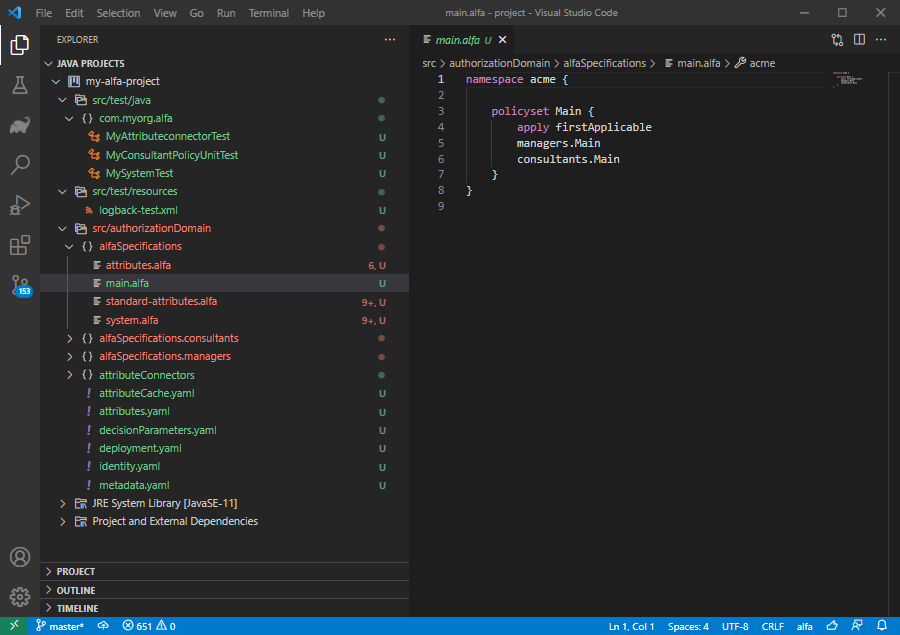
The image above shows the VS Code view after the project has loaded successfully. ALFA policies and the attribute dictionary are located under
src/authorizationDomain.Run the tests in the sample project included in the repository to verify that the setup finished successfully:
Click the Gradle logo in the activity sidebar to the right.
Expand the contents of my-alfa-project > Tasks > verification and double-click the test task.
After the tests complete, the output should display a
BUILD SUCCESSFULmessage.infoFor a full reference of the Gradle tasks, see the Gradle section.
Build the authorization domain to generate its configuration files:
Click the Gradle logo in the activity sidebar to the right.
Expand the contents of my-alfa-project > Tasks > axiomatics and double-click the buildAuthzDomain task.
In the APD project the authorization domain configuration will be added to
build/alfa/domain/ads/domain.yaml.